setup guide | ~5 min | 4 steps | 9 screenshots macos 15.0+ · arm64
Setup Guide

Get WannaTapThat running on your Mac.

Four steps: install, bypass Gatekeeper, grant permissions, run. The Gatekeeper detour is the only weird bit — everything else is standard macOS.

~5 min macos 15.0+ arm64 no install scripts
00 · Before

Before you start

Make sure you have all four:

  • mac.os macOS Sequoia 15.0+
  • iphone iOS 18+ with Hinge
  • apple.id Same Apple ID on both
  • network Same Wi-Fi network
01 · Install

Download & install

Download the app and drag it to Applications.

action Download WannaTapThat.dmg if you haven't already.
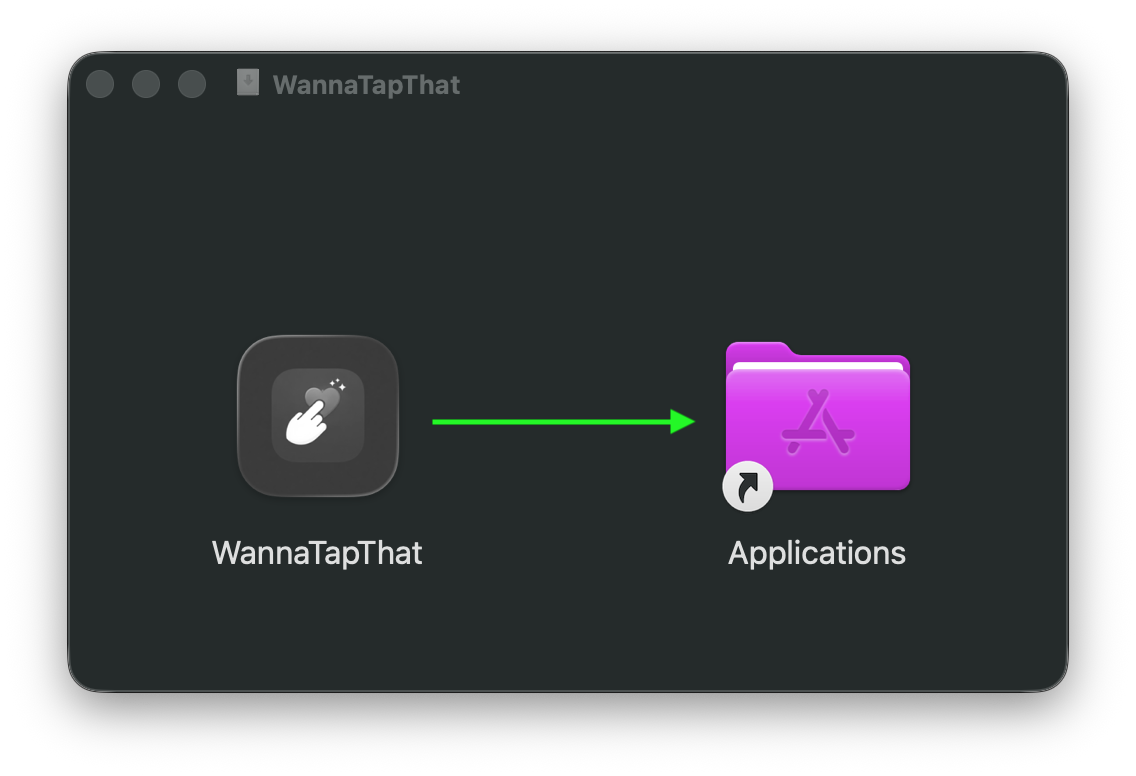
WannaTapThat.dmg
Drag WannaTapThat to Applications
Drag WannaTapThat to the Applications folder.
02 · Open

Open the app (bypass macOS warning)

macOS blocks the app because it's unsigned. Normal and expected — here's how to launch it anyway.

why The app isn't signed with an Apple Developer certificate. Common for indie tools distributed outside the App Store. Source code is yours to inspect on request.
02.a · First popup

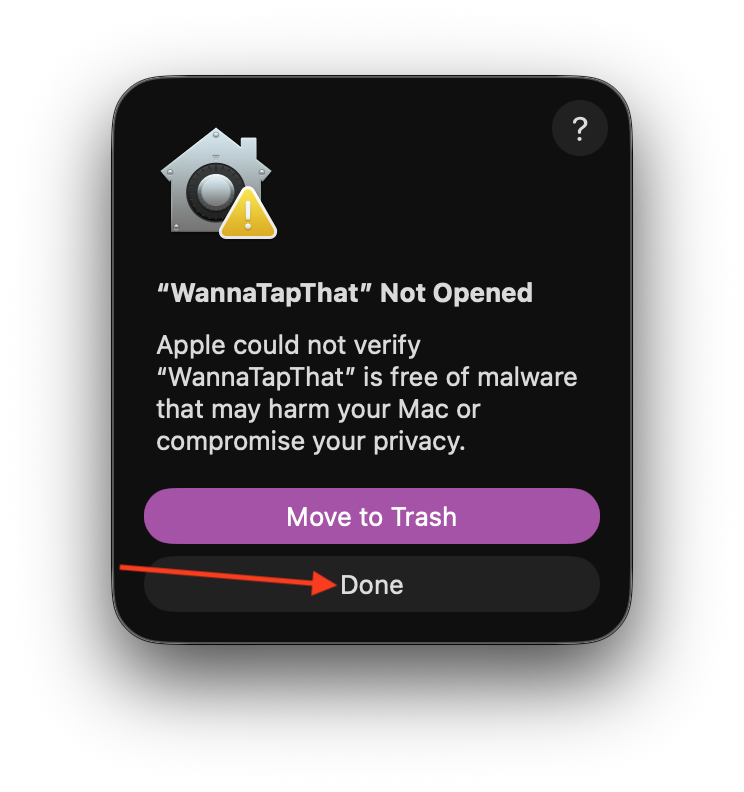
You'll see this popup first. Click Donenot "Move to Trash."

macOS · Gatekeeper
Gatekeeper warning popup
Click Done — the app is safe.
02.b · Privacy & Security

Open System Settings → Privacy & Security and scroll down.
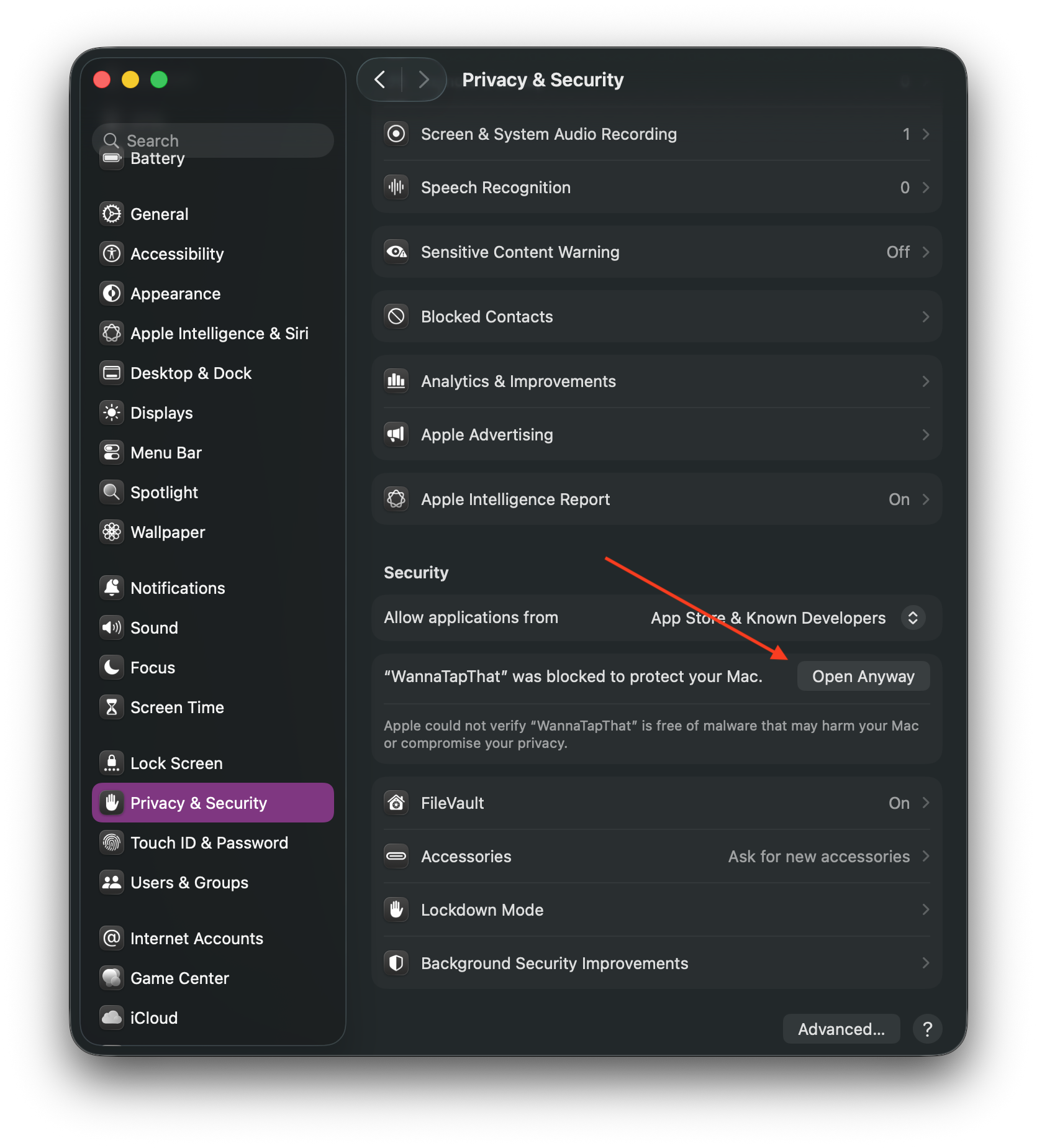
System Settings · Privacy & Security
Privacy & Security settings showing Open Anyway
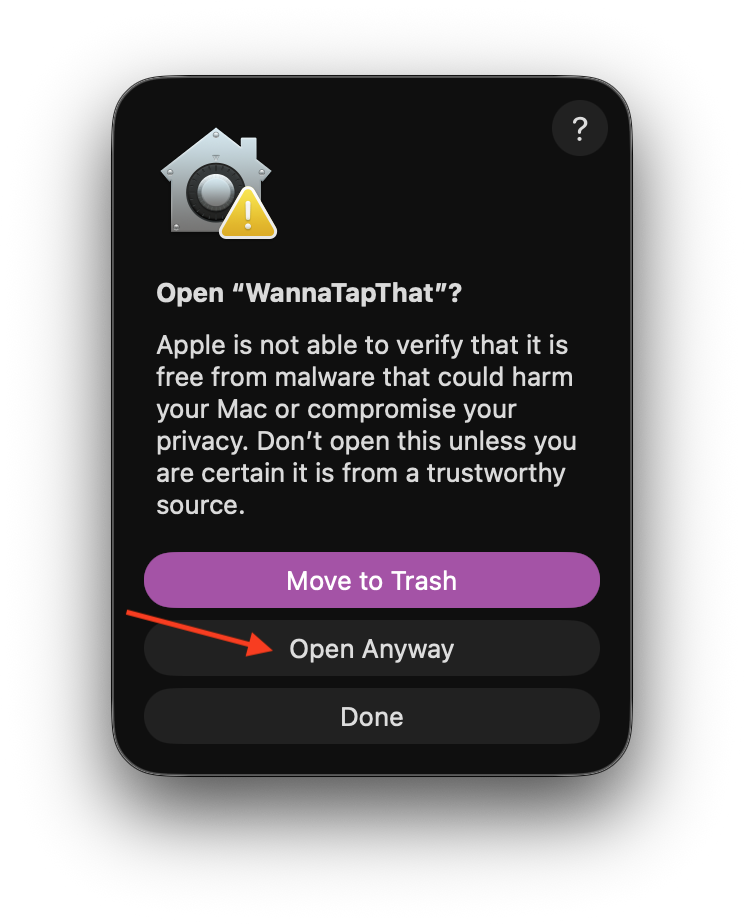
Find "WannaTapThat was blocked" → click Open Anyway.
02.c · Final confirm

One more confirmation dialog.

macOS · Open Anyway
Final confirmation dialog
Click Open Anyway to launch.
03 · Permissions

Grant permissions

Two macOS permissions — one to see your screen (the iPhone Mirroring window), one to click and type.

03.a · Screen Recording

So the app can see iPhone Mirroring.

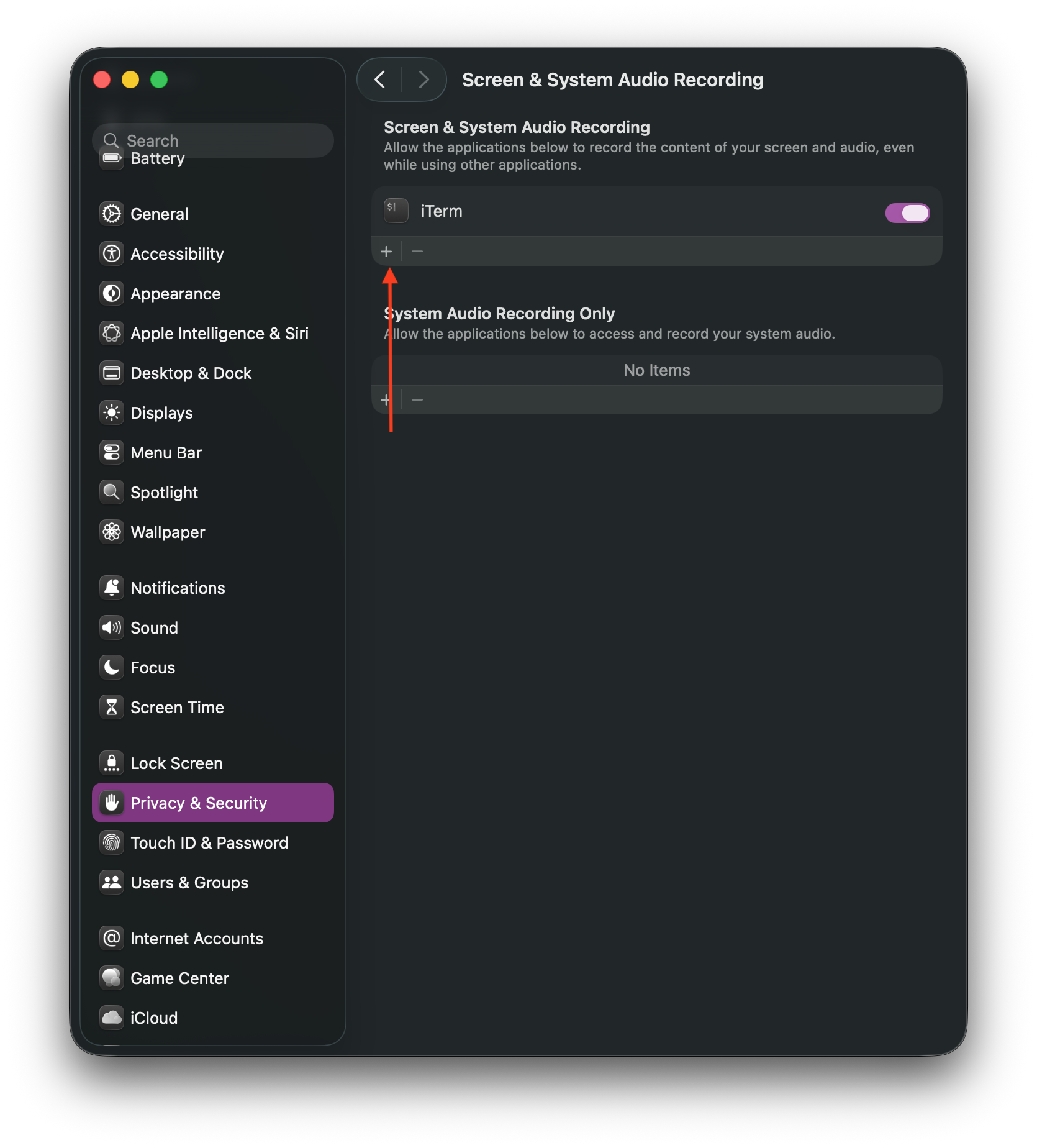
go to System Settings → Privacy & Security → Screen & System Audio Recording

Click the + button to add the app:

Screen Recording · Add app
Click + to add app
Click + to add an app.

Find WannaTapThat in Applications and select it:
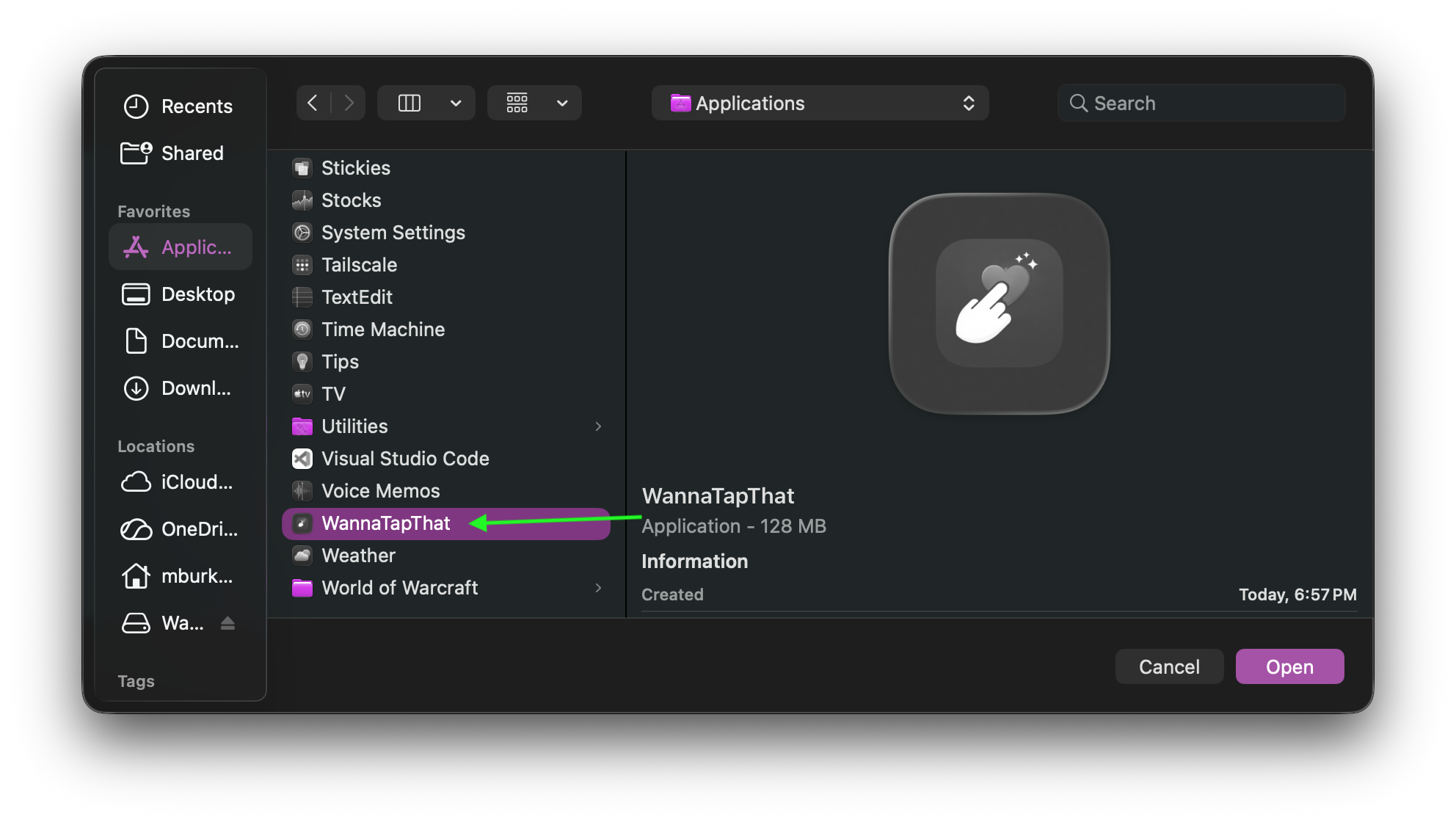
Applications · WannaTapThat
Select WannaTapThat from Applications
Select WannaTapThatOpen.

Restart so the permission takes effect:
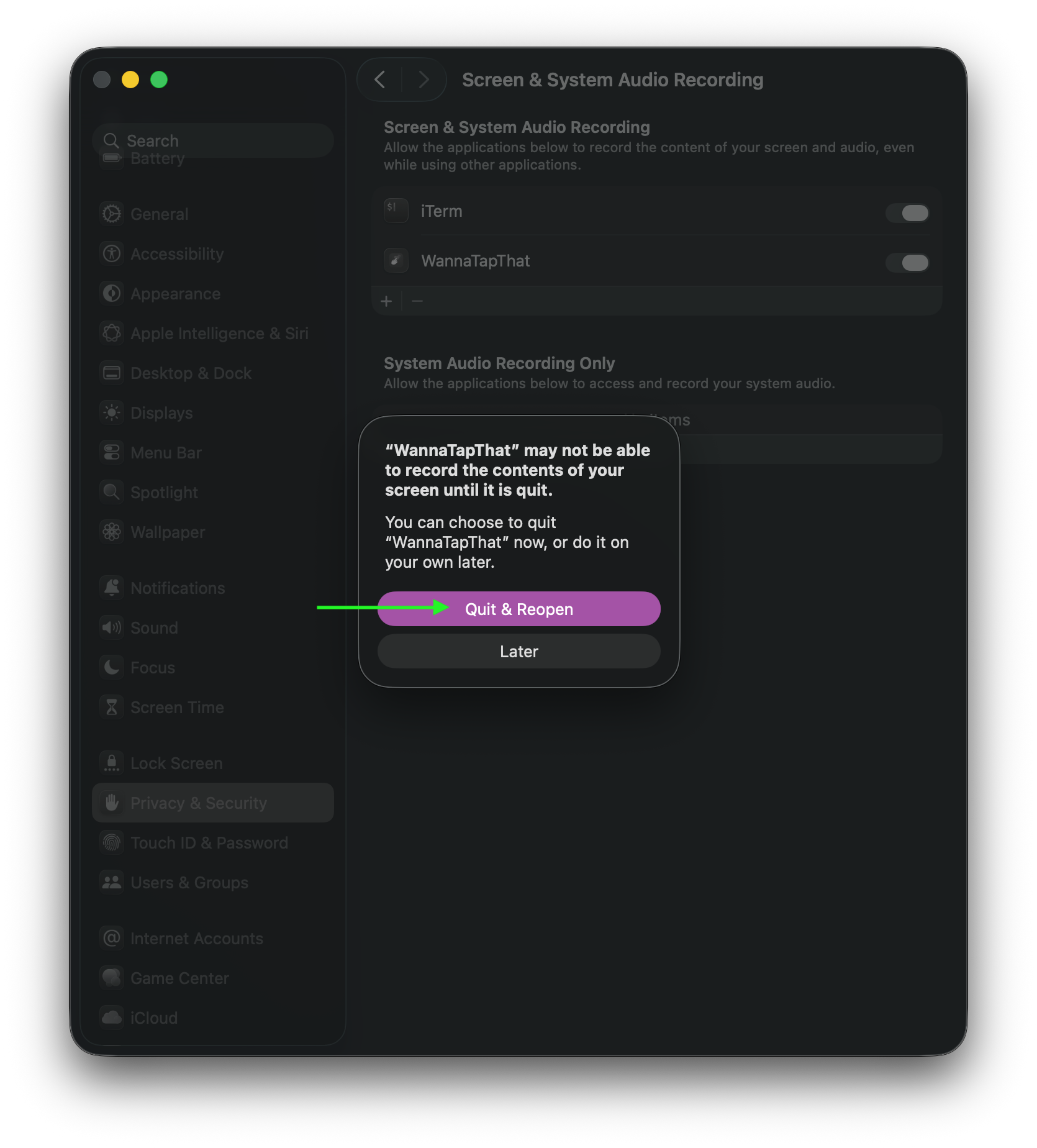
Quit & Reopen
Quit and Reopen dialog
Click Quit & Reopen.
03.b · Accessibility

So the app can click and type.

go to System Settings → Privacy & Security → Accessibility

Same flow — click +, select WannaTapThat, toggle it ON.
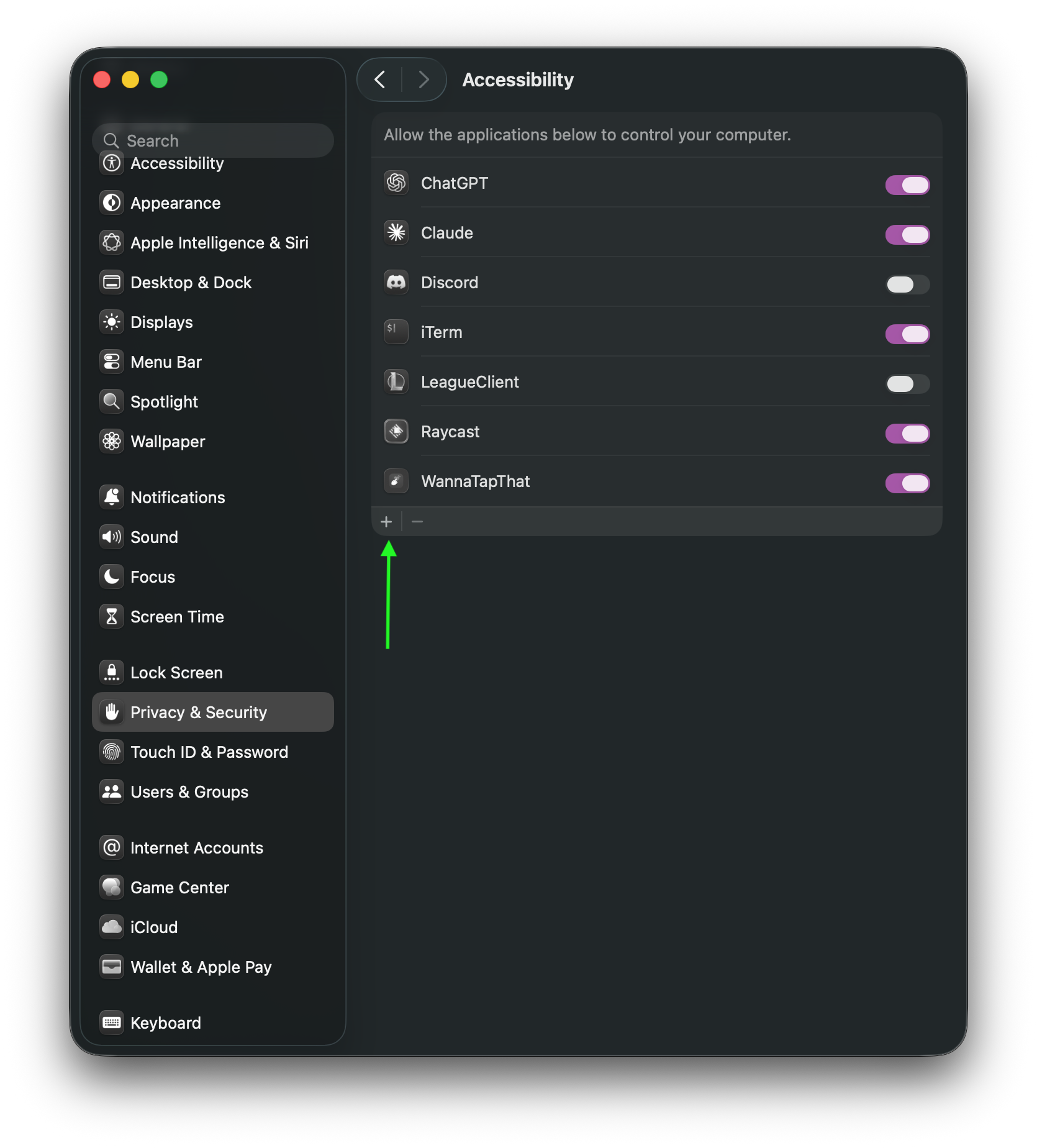
Accessibility · Allow
Accessibility permission
Make sure WannaTapThat is in the list and toggled ON.
04 · Run

Start swiping

Open iPhone Mirroring with Hinge, then let the app drive.

order 1. Open iPhone Mirroring on your Mac (Spotlight → "iPhone Mirroring")
2. Open Hinge on your iPhone, Discover tab
3. Open WannaTapThat, type your opener
4. Click Start
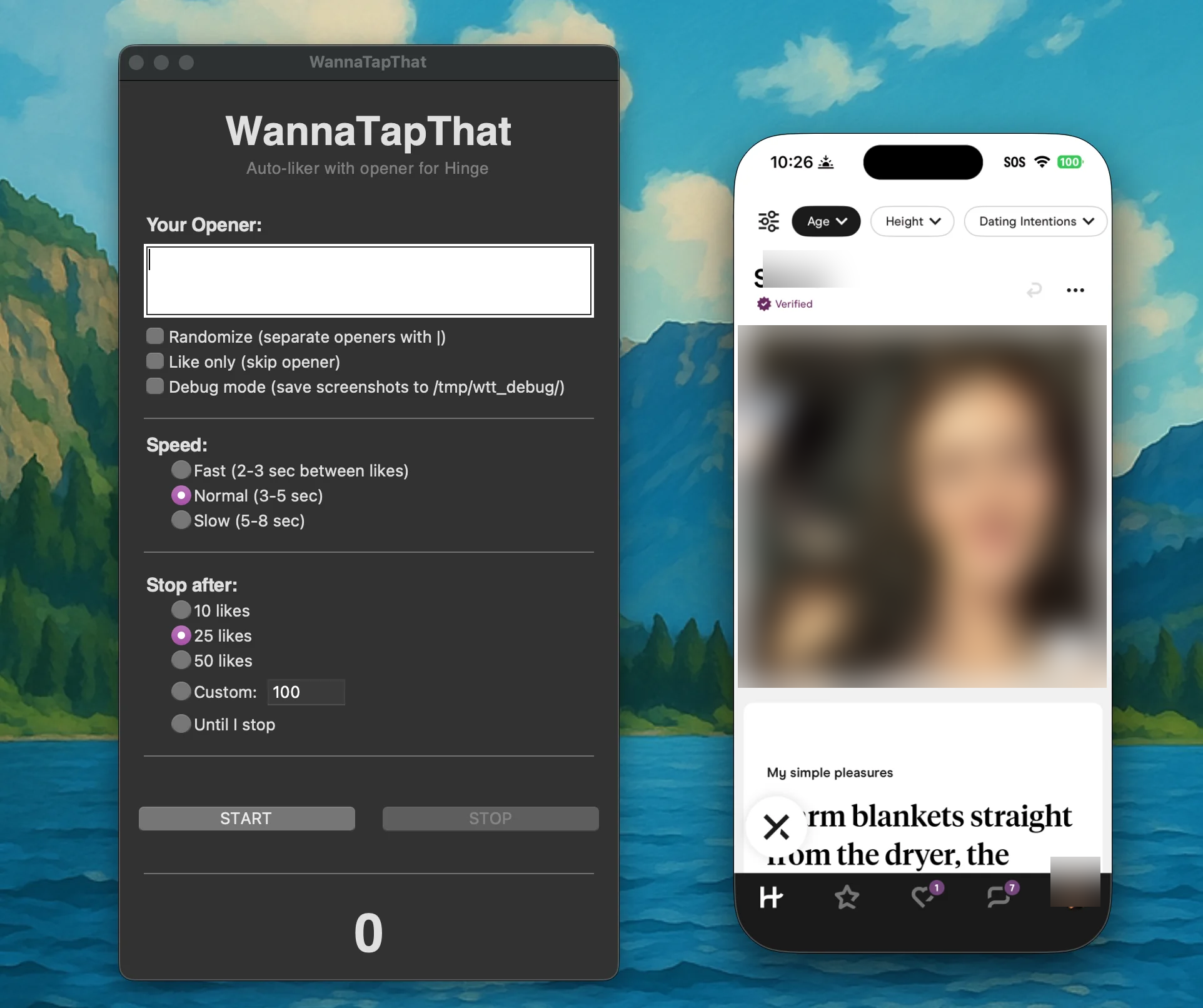
~/wannatapthat  ·  running
App running with iPhone Mirroring
The app finds profiles and sends your opener automatically.
heads-up Keep your iPhone locked. iPhone Mirroring only works when the phone's screen is off. Unlocking the phone stops the mirror.
Setup complete

You're all set.

The app likes profiles and sends your opener automatically. Come back later for matches.

Troubleshooting
App says "Can't find heart button"
Make sure iPhone Mirroring is showing Hinge's Discover tab with a profile visible. Try scrolling to load a fresh profile.
Clicks aren't working
Check Accessibility permission. Try removing WannaTapThat from the list and adding it again.
App can't see the screen
Check Screen Recording permission. Toggle it off and on, then restart the app.
Still stuck
Join the Discord and ask in #support.